
VNC lets you view and control your VPS directly — keyboard, mouse, and monitor — independent of the network. This is useful for troubleshooting boot problems, filesystem errors, or any situation where the VM isn't reachable over the network. See Server is Unreachable for how VNC fits into that troubleshooting process.
Opening the VNC console
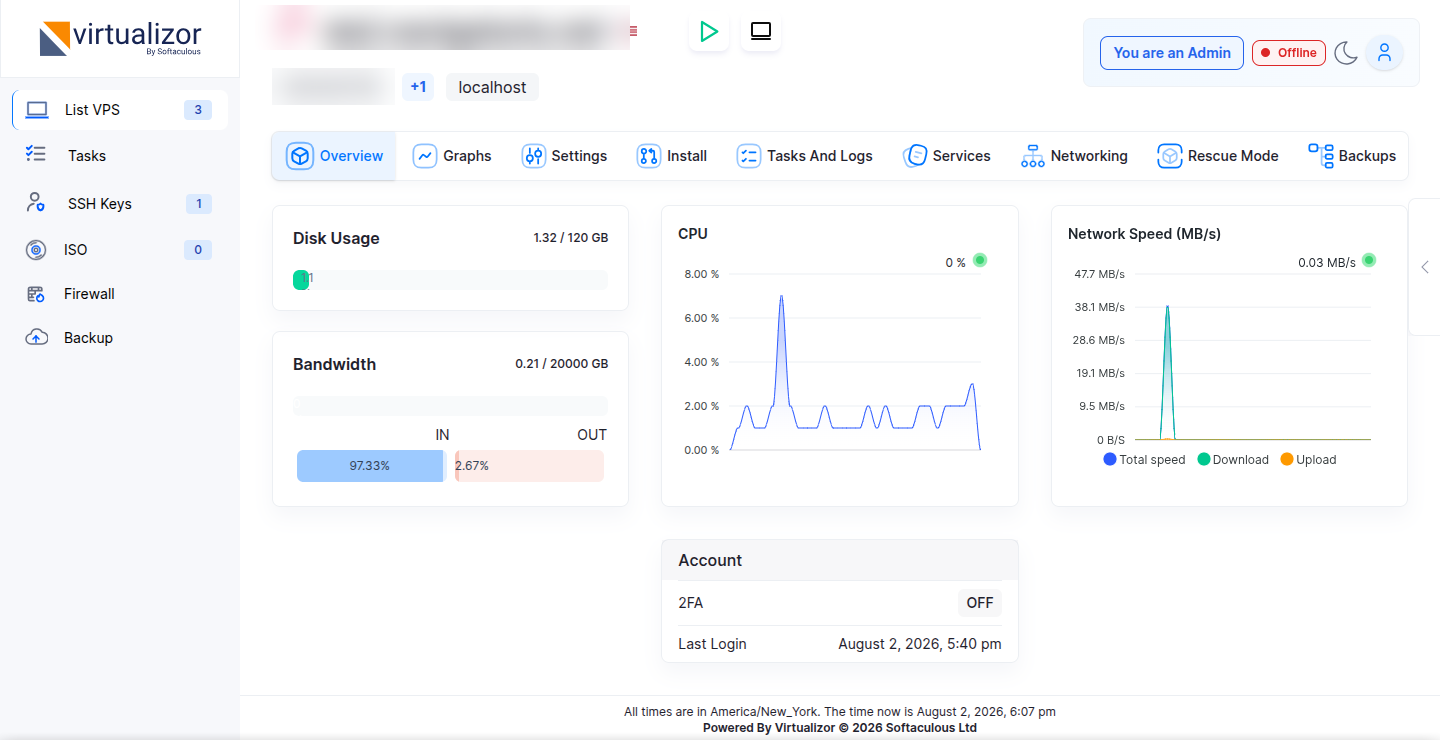
From your VPS management page in the panel:
1. Make sure the VPS is powered on.
2. Click the monitor icon at the top of the page, next to the start/stop controls.
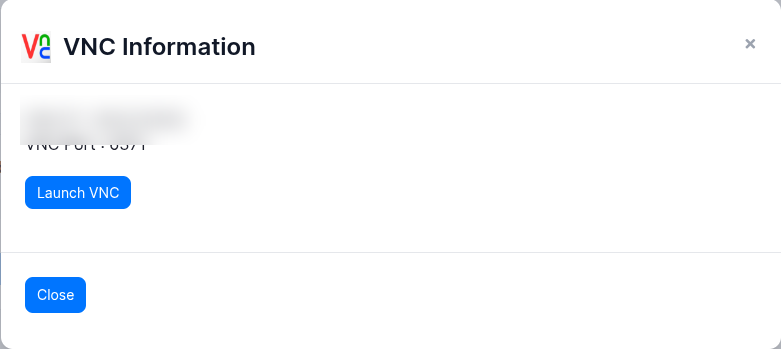
3. A "VNC Information" popup appears showing the VNC IP and port — click "Launch VNC."
4. A new window opens with a live console of your VPS, including its boot messages and login prompt.
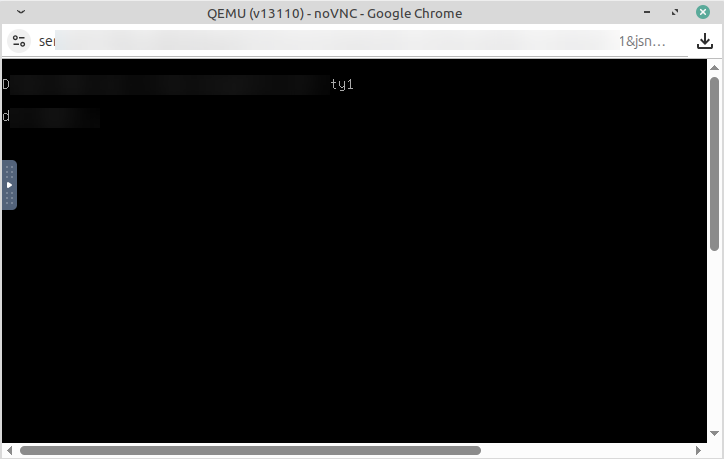
If nothing opens after clicking "Launch VNC," check that your browser isn't blocking popups for the site.
Resetting the VNC password
If you reset your VNC password from the panel, the new password takes effect immediately for the panel's built-in VNC console — you don't need to restart the VPS to use it.
The restart requirement only applies if you're connecting with a separate, standalone VNC client instead of the panel's built-in console. In that case, you'll need to use the restart button in the panel for the new password to take effect for that external connection.
Related
• Server is Unreachable — using VNC to diagnose a VPS that won't respond
• Changing Your Root Password